Blog
How to Set Up SPF, DKIM, and DMARC: Complete Email Authentication Guide (2026)
Step-by-step guide to configure SPF, DKIM, and DMARC records in DNS. Prevent domain spoofing, fix email deliverability, and pass Gmail/Yahoo checks.

> TL;DR: Setting up SPF, DKIM, and DMARC creates an undeniable cryptographic identity for your sending domain, preventing domain spoofing, phishing, and spam folder placement. SPF identifies authorized sending servers, DKIM cryptographically signs outgoing emails, and DMARC enforces policy handling while providing aggregate reporting. Following this step-by-step deployment guide ensures full compliance with Google, Yahoo, and Microsoft sender guidelines while protecting your brand's inbox placement.
Last updated: July 2026
Understanding Email Authentication: Why SPF, DKIM, and DMARC Matter
Email authentication is a set of technical protocols designed to verify the sender's identity and prove to recipient mailbox providers that an incoming message genuinely originated from the domain listed in the From: header. When Simple Mail Transfer Protocol (SMTP) was created in 1982, it lacked built-in identity verification mechanisms. Anyone with basic terminal access could transmit an email claiming to originate from ceo@yourcompany.com or billing@bank.com. This structural flaw enabled global email spoofing, business email compromise (BEC), and widespread spam.
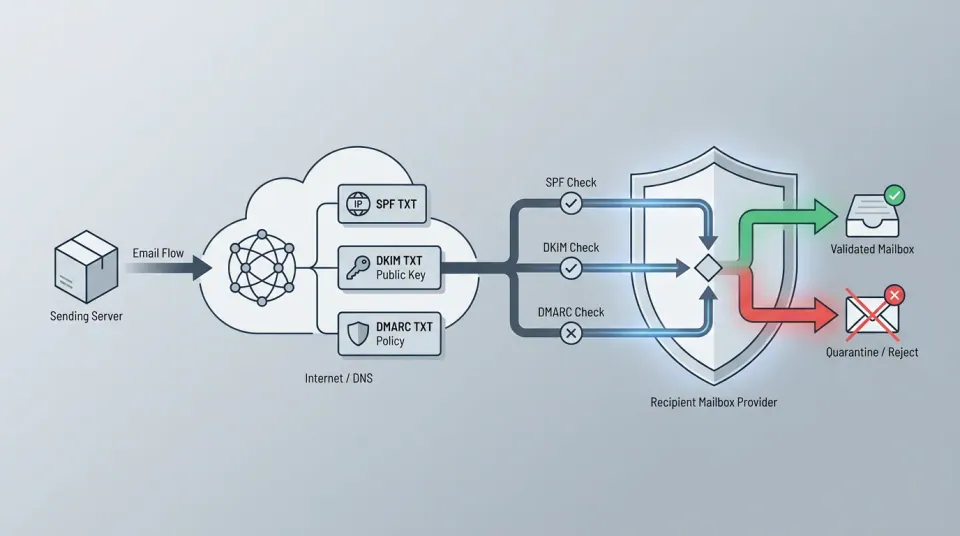
To combat spoofing and protect recipient inboxes, the email ecosystem developed three complementary authentication standards: Sender Policy Framework (SPF), DomainKeys Identified Mail (DKIM), and Domain-based Message Authentication, Reporting, and Conformance (DMARC). Together, these standards establish a cryptographic chain of trust between your DNS records and your email servers.
| Protocol | Core Function | DNS Record Type | Specification | | :--- | :--- | :--- | :--- | | SPF | Authorizes sending IP addresses and subnets | TXT | RFC 7208 | | DKIM | Attaches cryptographic signature to message headers | CNAME or TXT | RFC 6376 | | DMARC | Enforces policy alignment and receives XML failure reports | TXT (_dmarc.yourdomain.com) | RFC 7489 |
When major mailbox providers like Gmail, Yahoo, and Microsoft 365 receive an email from your domain, their incoming mail transfer agents (MTAs) perform immediate authentication checks against your public DNS records. If your authentication is missing, misconfigured, or unaligned, mailbox providers reject the message or send it directly to the spam folder.
Since early 2024, major mailbox providers have enforced mandatory SPF, DKIM, and DMARC authentication for all bulk senders transmitting more than 5,000 messages daily to consumer inboxes. Organizations without proper authentication face aggressive rate-limiting, permanent 5xx block failures, and catastrophic domain reputation damage.
Step 1: How to Configure Sender Policy Framework (SPF)
Sender Policy Framework (SPF) is an IP-based authentication protocol defined in RFC 7208. An SPF record is a single TXT record published in your domain's DNS zone file that lists all IP addresses, subnets, and third-party email service providers authorized to send email on behalf of your domain.
How SPF Works During Email Delivery
When an email server receives a message from user@example.com, it extracts the domain from the envelope sender address (also known as the Return-Path or MAIL FROM address). The receiving MTA then performs a DNS TXT lookup for example.com to fetch its published SPF record. The MTA compares the connecting server's IP address against the authorized IPs listed in the record:
- SPF Pass: The connecting IP address matches an IP address or
includestatement in the SPF record. - SPF Fail (Hard Fail): The connecting IP address is not listed, and the SPF record ends with
-all. - SPF Soft Fail: The connecting IP address is not listed, but the SPF record ends with
~all. - SPF Neutral: The SPF record ends with
?all, indicating no explicit assertion. - SPF None: No SPF record exists for the domain.
[ Incoming Email Received by MTA ]
               |
               v
[ Extract Envelope Return-Path Address ]
               |
               v
[ Perform DNS TXT Lookup for SPF Record ]
               |
      |                 |
      v                 v
[ IP Authorized ]   [ IP Unauthorized ]
      |                 |
      v                 v
  SPF PASS         SPF FAIL / SOFTFAIL
SPF Record Syntax Breakdown
An SPF record always begins with the version identifier v=spf1 and consists of mechanisms, modifiers, and a trailing redirect/all mechanism. Here is a standard production SPF record:
v=spf1 ip4:192.0.2.1 ip4:198.51.100.0/24 include:_spf.google.com include:sendgrove.com ~allLet's dissect each component of this SPF record:
v=spf1: Mandated protocol version string. Must be lowercase and positioned at the absolute start of the TXT record.ip4:192.0.2.1: Directly authorizes a single IPv4 address (e.g., your primary corporate mail server).ip4:198.51.100.0/24: Authorizes an entire IPv4 CIDR subnet block (256 addresses).include:_spf.google.com: Recursively queries Google Workspace's published SPF record to authorize Google's infrastructure.include:sendgrove.com: Recursively queries Sendgrove's published SPF record to authorize Sendgrove's sending infrastructure.~all: SoftFail qualifier. Instructs receiving servers to accept the email but mark unauthorized IPs with a soft fail header for further DMARC processing.
Critical Rule: The 10 DNS Lookup Limit
RFC 7208 mandates that evaluating an SPF record must require no more than 10 DNS lookups (including include, a, mx, ptr, and exists mechanisms). Modifiers like ip4 and ip6 do not count toward the lookup limit because they specify static IP values without requesting secondary DNS queries.
If your SPF record triggers more than 10 DNS lookups, recipient servers return a PermError (Permanent Error). A PermError invalidates your entire SPF record, causing SPF authentication to fail completely for all legitimate outgoing emails.
| Service Provider | Included Host Directive | Required Secondary DNS Lookups | | :--- | :--- | :--- | | Google Workspace | _spf.google.com | 3 DNS Lookups | | Microsoft 365 | spf.protection.outlook.com | 1 DNS Lookup | | Sendgrove | include:sendgrove.com | 1 DNS Lookup | | Salesforce Marketing Cloud | Vendor-specific host | 2 to 4 DNS Lookups | | Zendesk | mail.zendesk.com | 1 DNS Lookup |
To avoid exceeding the 10-lookup limit:
- Combine services into direct CIDR IP blocks when using dedicated sending infrastructure.
- Remove legacy ESPs and unused third-party tools from your SPF record.
- Never create multiple SPF records for a single domain. Combine all mechanisms into one single TXT record.
- Implement dynamic SPF flattening services if your organization uses numerous third-party tools.
Step 2: How to Set Up DomainKeys Identified Mail (DKIM)
DomainKeys Identified Mail (DKIM), defined in RFC 6376, provides cryptographic assurance that an email message was sent by the domain owner and has not been altered or tampered with in transit.
Unlike SPF, which relies solely on server IP addresses, DKIM attaches an asymmetric cryptographic digital signature to the headers of every outgoing message.
How DKIM Asymmetric Cryptography Works
DKIM uses public-key cryptography (RSA or Elliptic Curve Ed25519) consisting of a private key and a public key pair:
- Private Key Storage: Your sending mail server or email platform (such as Email Marketing infrastructure) securely stores the private key on its server. The private key is never shared publicly.
- Signature Header Creation: When an outgoing email is generated, the mail server creates a hash of selected header fields (including
From,To,Subject, andDate) and the body content. It encrypts this hash using the private key and appends the resulting string to the email headers as aDKIM-Signature:header. - Public Key Publication: You publish the corresponding public key as a DNS TXT or CNAME record under a unique sub-domain known as a DKIM Selector.
- Verification at Recipient Server: The receiving server retrieves the public key from your DNS using the selector specified in the incoming message's
DKIM-Signatureheader. It decrypts the signature using the public key and computes its own hash of the message. If the decrypted hash matches the computed hash, DKIM authentication passes and integrity is confirmed.
[ Sending Mail Server ]                            [ Recipient Mail Server ]
          |                                                    |
  1. Compute Body Hash                                 4. Fetch Public Key
  2. Encrypt with Private Key                             from DNS Selector
  3. Add DKIM-Signature Header -------- Transmit → 5. Decrypt Signature Hash
                                                       6. Compare Hashes
                                                               |
                                                               v
                                                      [ DKIM PASS Result ]
Understanding the DKIM-Signature Header
When inspecting full raw headers of an authenticated message, the DKIM-Signature tag appears as follows:
DKIM-Signature: v=1; a=rsa-sha256; c=relaxed/relaxed; d=example.com;
 s=sg2026; t=1721980800;
 h=from:to:subject:date:message-id:content-type;
 bh=47DEQpj8HBSa+/TImW+5JCeuQeRkm5NMpJWZG3hSuFU=;
b=K3n8Xv9Z2m...v=1: DKIM version specification.a=rsa-sha256: Signing algorithm used (RSA with SHA-256 hash; 2048-bit key size minimum).c=relaxed/relaxed: Canonicalization algorithm for headers and body, preventing whitespace changes from breaking signatures during transit.d=example.com: Signing domain. This domain must align with yourFrom:domain for DMARC pass requirements.s=sg2026: DKIM Selector. This tells receiving MTAs where to look in DNS (sg2026._domainkey.example.com).bh=: Hash of the message body (Body Hash).b=: The actual digital signature of headers and body hash.
CNAME Delegation vs Static TXT Records
Email platforms generally provide DKIM keys using one of two methods:
- CNAME Record Delegation (Recommended): The platform instructs you to point a CNAME record (e.g.,
sg2026._domainkey.yourdomain.com) to their central key server (e.g.,sg2026._domainkey.sendgrove.com). This allows the platform to rotate cryptographic keys seamlessly without requiring manual DNS updates from your team. - Static TXT Records: You directly publish the
v=DKIM1; k=rsa; p=MIGfMA0GCSqGSIb3...string as a TXT record. While effective, static records require manual key rotation at least once per year to maintain cryptographic hygiene.
Step 3: How to Implement Domain-based Message Authentication (DMARC)
While SPF and DKIM verify sender identity and message integrity, neither protocol tells receiving servers what to do when authentication fails. Furthermore, unauthenticated emails can still be delivered if a spammer spoofs your visible From: header while passing SPF on their own separate envelope domain.
Domain-based Message Authentication, Reporting, and Conformance (DMARC), defined in RFC 7489, solves these vulnerabilities by linking SPF and DKIM directly to the visible From: header domain through a concept called Domain Alignment.
The Concept of DMARC Identifier Alignment
For an email to pass DMARC, it must pass SPF and/or DKIM, and the passing protocol must align with the organizational domain shown in the visible From: address:
- SPF Alignment: The domain in the envelope
Return-Pathaddress must match the domain in the visibleFrom:header. - DKIM Alignment: The
d=domain in the validDKIM-Signatureheader must match the domain in the visibleFrom:header.
Alignment can be configured as Strict (exact domain match required, e.g., example.com = example.com) or Relaxed (sub-domains aligned to organizational domain allowed, e.g., news.example.com aligns with example.com). Relaxed alignment is the default mode for both protocols.
| Visible From Header | Protocol Domain Checked | Alignment Mode | DMARC Alignment Result | | :--- | :--- | :--- | :--- | | example.com | Return-Path: mail.example.com | Relaxed (aspf=r) | PASS | | example.com | Return-Path: mail.example.com | Strict (aspf=s) | FAIL | | example.com | DKIM: d=example.com | Relaxed (adkim=r) | PASS | | example.com | DKIM: d=thirdparty.com | Relaxed (adkim=r) | FAIL (Unaligned) |
DMARC Policy Enforcement Modes
DMARC allows domain owners to publish a policy instructing receiving mail servers how to handle unauthenticated messages claiming to come from their domain. DMARC supports three distinct policy enforcement levels:
p=none(Monitoring Mode): Instructs receiving servers to deliver unauthenticated messages as normal while sending XML aggregate diagnostic reports (rua) to the domain owner. Usep=noneduring initial deployment to audit all legitimate mail streams without risking legitimate mail delivery.p=quarantine(Quarantine Mode): Instructs receiving servers to divert unauthenticated messages away from the primary inbox and into the recipient's spam, junk, or quarantine folder.p=reject(Reject / Block Mode): Instructs receiving servers to outright block and reject unauthenticated messages at the SMTP gateway connection level. Messages failing DMARC underp=rejectare dropped entirely, protecting recipient inboxes from malicious spoofing attempts.
Complete DMARC TXT Record Syntax
A DMARC TXT record must be published at the host location _dmarc.yourdomain.com. Here is a production-grade DMARC record:
v=DMARC1; p=quarantine; pct=100; rua=mailto:dmarc-reports@example.com; ruf=mailto:dmarc-forensics@example.com; adkim=r; aspf=r; sp=quarantine;Let's break down all standard DMARC tags:
v=DMARC1: Required protocol version tag. Must be capitalized and positioned at the beginning of the record.p=quarantine: The enforcement policy applied to the main domain (none,quarantine, orreject).rua=mailto:dmarc-reports@example.com: Destination email address for daily XML aggregate feedback reports.ruf=mailto:dmarc-forensics@example.com: Destination for real-time forensic failure samples (note: many major ISPs suppress forensic reports due to privacy regulations).pct=100: Percentage of unauthenticated messages subject to policy enforcement (default is 100%).sp=quarantine: Explicit policy applied to all sub-domains (e.g.,sub.example.com). If omitted, sub-domains inherit the rootp=policy.adkim=r: DKIM alignment mode (rfor relaxed,sfor strict).aspf=r: SPF alignment mode (rfor relaxed,sfor strict).
Step 4: Step-by-Step DNS Deployment Walkthrough for Major Providers
Deploying SPF, DKIM, and DMARC requires publishing DNS records in your domain registrar or DNS hosting platform. Below are step-by-step instructions for the four most common DNS hosts.
Walkthrough 1: Configuring DNS Records in Cloudflare
- Log in to your Cloudflare Dashboard and select your domain.
- Click DNS in the left sidebar navigation menu, then click Records.
- Add SPF Record:
- Click Add record.
- Set Type to
TXT. - Set Name to
@(or leave as root domainexample.com). - Set Content to
v=spf1 include:_spf.google.com include:sendgrove.com ~all. - Set TTL to
Autoand click Save.
- Add DKIM CNAME Records:
- Click Add record.
- Set Type to
CNAME. - Set Name to
sg2026._domainkey. - Set Target to
sg2026._domainkey.sendgrove.com. - Important: Toggle the Proxy status switch to DNS only (gray cloud). Do NOT proxy DKIM records through Cloudflare's HTTP proxy.
- Click Save.
- Add DMARC TXT Record:
- Click Add record.
- Set Type to
TXT. - Set Name to
_dmarc. - Set Content to
v=DMARC1; p=none; rua=mailto:dmarc-reports@yourdomain.com;. - Click Save.
Walkthrough 2: Configuring DNS Records in GoDaddy
- Log in to your GoDaddy Domain Control Center and select DNS Management.
- Click Add New Record.
- For SPF: Select Type
TXT, Host@, Valuev=spf1 include:_spf.google.com include:sendgrove.com ~all, TTL 1 Hour. Save. - For DKIM: Select Type
CNAME(orTXTas required by your ESP), Namesg2026._domainkey, Valuesg2026._domainkey.sendgrove.com, TTL 1 Hour. Save. - For DMARC: Select Type
TXT, Name_dmarc, Valuev=DMARC1; p=none; rua=mailto:dmarc-reports@yourdomain.com;, TTL 1 Hour. Save.
Walkthrough 3: Configuring DNS Records in AWS Route 53
- Open the Amazon Route 53 console and navigate to Hosted zones. Select your domain.
- Click Create record.
- SPF Record: Record name empty (root), Record type
TXT, Value"v=spf1 include:_spf.google.com include:sendgrove.com ~all"(ensure quotes surround the value string in Route 53). - DKIM Record: Record name
sg2026._domainkey, Record typeCNAME, Valuesg2026._domainkey.sendgrove.com. - DMARC Record: Record name
_dmarc, Record typeTXT, Value"v=DMARC1; p=none; rua=mailto:dmarc-reports@yourdomain.com;". - Click Create records.
Step 5: How to Test and Verify Your Authentication Records
After publishing your DNS records, verify that they are live, syntax-valid, and propagated across global DNS resolvers.
Command-Line Testing via Terminal (Dig & Nslookup)
You can inspect raw DNS records directly from your operating system terminal using native tools:
# Query SPF TXT record
dig TXT example.com +short

# Query DKIM Selector record
dig CNAME sg2026._domainkey.example.com +short
# or for TXT keys:
dig TXT sg2026._domainkey.example.com +short

# Query DMARC TXT record
dig TXT _dmarc.example.com +short
On Windows Command Prompt or PowerShell, use nslookup:
nslookup -type=TXT example.com
nslookup -type=CNAME sg2026._domainkey.example.com
nslookup -type=TXT _dmarc.example.com
Analyzing Raw Email Headers in Gmail & Outlook
The ultimate test of authentication alignment is sending an email to a test mailbox and inspecting the full message headers.
In Gmail:
- Open the received email.
- Click the three vertical dots next to the reply button and select Show original.
- Review the summary table at the top for
SPF,DKIM, andDMARCpass statuses.
| Header Item | Verification Result | Details | | :--- | :--- | :--- | | SPF | PASS | Permitted sender IP 198.51.100.45 | | DKIM | PASS | Signed by domain example.com | | DMARC | PASS | Identifier alignment confirmed |
Inspect the Authentication-Results: header in the raw source:
Authentication-Results: mx.google.com;
       dkim=pass header.i=@example.com header.s=sg2026 header.b=K3n8Xv9Z;
       spf=pass (google.com: domain of bounces@example.com designates 198.51.100.45 as permitted sender) smtp.mailfrom=bounces@example.com;
       dmarc=pass (p=QUARANTINE sp=QUARANTINE dis=NONE) header.from=example.com
If any field shows fail, softfail, or unaligned, re-verify your DNS selector names and envelope return-path settings.
Step 6: DMARC Aggregate (RUA) Report Analysis and Deliverability Troubleshooting
When you specify rua=mailto:dmarc-reports@example.com in your DMARC record, receiving mail servers (including Google, Microsoft, Yahoo, Comcast, and Mail.ru) compile daily XML aggregate reports. These reports detail every single email received claiming to originate from your domain, listing the sending IP address, message count, SPF result, DKIM result, and DMARC alignment status.

Parsing a Raw DMARC XML Aggregate Report
DMARC XML aggregate files arrive compressed as .xml.gz attachments. Below is an excerpt from an aggregate report generated by Google:
<record>
  <row>
    <source_ip>198.51.100.45</source_ip>
    <count>1450</count>
    <policy_evaluated>
      <disposition>none</disposition>
      <spf>pass</spf>
      <dkim>pass</dkim>
    </policy_evaluated>
  </row>
  <identifiers>
    <header_from>example.com</header_from>
  </identifiers>
  <auth_results>
    <dkim>
      <domain>example.com</domain>
      <result>pass</result>
      <selector>sg2026</selector>
    </dkim>
    <spf>
      <domain>sendgrove.com</domain>
      <result>pass</result>
    </spf>
  </auth_results>
</record>
Evaluating Report Findings Before Policy Enforcement
Reviewing aggregate reports during your p=none monitoring period reveals crucial intelligence:
- Legitimate Unauthenticated Streams: You may discover legitimate transactional platforms (e.g., Zendesk, Shopify, QuickBooks, or an HR portal) sending emails on your behalf without proper DKIM signing or SPF authorization. You must authenticate these tools before moving to
p=quarantine. - Shadow IT & Misconfigured Servers: Outdated internal mail relays or secondary legacy marketing tools might be generating soft fails.
- Active Spoofing Attacks: You will see unauthorized IP addresses across foreign networks attempting to impersonate your domain. When
p=noneis active, these malicious emails are delivered. Once you escalate top=quarantineorp=reject, receiving servers block these fraudulent campaigns automatically.
Integrating Pre-Send List Hygiene with Authentication
Authenticating your domain ensures mailbox providers recognize your infrastructure, but sending campaigns to invalid or abandoned email addresses still triggers hard bounces. High hard bounce rates degrade your domain reputation even when SPF, DKIM, and DMARC pass perfectly. Many ESPs warn when hard bounces climb toward ~1–2%.
To protect your inbox placement across all sending channels, run your email list through Email Validation before launching campaigns. Proactively removing toxic addresses, invalid domains, and spam traps prevents hard bounce spikes from damaging the domain reputation you built with proper DMARC authentication. To evaluate accuracy, speed, and API workflows across leading platforms, read our detailed comparison of the best email verification services.
| Phase | Target DMARC Policy | Duration & Recommended Action | | :--- | :--- | :--- | | Phase 1: Audit | p=none; pct=100; | 2 to 4 Weeks: Collect RUA XML reports and map all legitimate sending tools. | | Phase 2: Align | p=none; pct=100; | 1 to 2 Weeks: Add DKIM keys to all secondary ESPs; verify alignment. | | Phase 3: Ramp | p=quarantine; pct=25; | 1 to 3 Weeks: Quarantine 25% of failing mail, then expand to 100%. | | Phase 4: Block | p=reject; pct=100; | Permanent: Full enforcement. All unauthorized mail dropped at gateway. |
Step 7: Advanced Email Security: BIMI, MTA-STS, and TLS-RPT
Once your domain achieves a DMARC policy of p=quarantine or p=reject at 100% enforcement, you unlock advanced email security protocols that further boost brand trust and inbox engagement.
Brand Indicators for Message Identification (BIMI)
Brand Indicators for Message Identification (BIMI) is an emerging email specification that displays your official corporate logo alongside your emails in recipient inbox preview lists (supported in Apple Mail, Gmail, Yahoo Mail, and Fastmail).
| Unauthenticated Standard Email Preview | Authenticated Email with BIMI Enabled | | :--- | :--- | | [ JD ] John Doe <john@example.com> | [ Verified Logo ] John Doe <john@example.com> [Blue Checkmark] | | Subject: Your July Invoice | Subject: Your July Invoice |
Requirements for BIMI Deployment:
- Active DMARC policy of
p=quarantine(atpct=100) orp=reject. - Vector logo graphic formatted in square SVG Tiny Portable/PSR standard.
- Verified Mark Certificate (VMC) issued by an authorized certificate authority (DigiCert or Entrust) for Gmail display.
- BIMI DNS TXT record published at
default._bimi.yourdomain.com:
v=BIMI1; l=https://example.com/assets/logo.svg; a=https://example.com/assets/vmc.pem;MTA-STS and TLS-RPT (Transport Security)
While SPF, DKIM, and DMARC protect message identity, SMTP Mail Transfer Agent Strict Transport Security (MTA-STS, RFC 8461) enforces encrypted TLS communication between email servers.
MTA-STS prevents man-in-the-middle (MITM) downgrade attacks by instructing sending mail servers to refuse connection if a secure TLS encrypted channel cannot be established. Paired with TLS Reporting (TLS-RPT, RFC 8460), MTA-STS provides full visibility into network-level delivery encryption failures.
Common SPF, DKIM, and DMARC Misconfigurations to Avoid
Even experienced IT managers and deliverability teams encounter configuration pitfalls. Below are six dangerous DNS misconfigurations that destroy email deliverability:
1. Publishing Multiple SPF TXT Records
Publishing two separate SPF records on a single domain (e.g., v=spf1 include:_spf.google.com ~all and v=spf1 include:sendgrove.com ~all) is an explicit violation of RFC 7208. When receiving servers detect multiple SPF records, they return an instant PermError, causing SPF evaluation to fail entirely.
Fix: Merge all authorized mechanisms into a single TXT record: v=spf1 include:_spf.google.com include:sendgrove.com ~all
2. Exceeding the 10 DNS Lookup Limit
Including too many vendor include: directives (e.g., Google, Salesforce, HubSpot, Zendesk, Mailchimp, and AWS SES on one domain) pushes lookup counts above 10. Receiving servers abort evaluation and flag the message with PermError.
Fix: Audit active sending tools, remove legacy providers, or use dynamic SPF flattening tools to convert nested hostnames into static IP subnets.
3. DKIM Key Domain Mismatch (Lack of Alignment)
Sending email through a third-party platform where the DKIM signature is signed with the provider's default domain (e.g., d=thirdpartyprovider.com) instead of your own custom domain (d=yourdomain.com). While DKIM authentication passes, DMARC alignment fails because the signing domain does not match your From: header.
Fix: Configure custom domain DKIM keys inside your sending platform (such as Sendgrove's Email Marketing settings) so the d= tag matches your actual brand domain.
4. Prematurely Enforcing p=reject
Escalating your DMARC record directly to p=reject on day one without conducting an initial p=none aggregate report audit. Any legitimate third-party sending service that was omitted during initial setup will have its messages rejected and dropped globally.
Fix: Always follow the phased rollout timeline (p=none → audit RUA reports → p=quarantine → p=reject).
5. Formatting Syntax Typos in DNS Tags
Small syntax typos—such as using v=spf1; with a semicolon instead of v=spf1, or using http:// instead of mailto: in DMARC rua= tags—render DNS records invalid.
Fix: Always check your DNS syntax using command-line dig queries and automated syntax validators before announcing changes.
6. Ignoring Sub-Domain Authentication & Spam Trap Contamination
Setting up authentication on your primary domain (example.com) while neglecting sub-domains used for transactional or marketing mail (mail.example.com or news.example.com). Spammers frequently exploit unmonitored sub-domains to launch phishing campaigns. Furthermore, sending unauthenticated campaigns to stale lists contaminated with spam traps will trigger domain blocklisting despite your root records. To clean your infrastructure, follow our step-by-step guide on how to remove spam traps from email list.
Building a Resilient Email Infrastructure with Sendgrove
Achieving high email deliverability requires combining domain authentication with proactive contact list hygiene. Configuring SPF, DKIM, and DMARC establishes your domain's verified identity, while keeping your subscriber lists clean prevents hard bounces and spam complaints from eroding your sender score.
Sendgrove unites high-deliverability sending infrastructure with built-in list validation and custom-domain inbox management. Every Sendgrove plan includes integrated credit-based verification, allowing you to validate subscriber emails automatically upon sign-up or before launching major promotional broadcasts.
Whether you are configuring new custom sending domains, auditing third-party mail streams, or scaling automated marketing workflows, Sendgrove provides the tools needed to protect your brand reputation and maximize campaign revenue. To explore scalable sender packages and credit allocations, visit Sendgrove Pricing today.
FAQ
What is the primary difference between SPF, DKIM, and DMARC?
SPF specifies which IP addresses and servers are authorized to send email on behalf of your domain. DKIM attaches a cryptographic digital signature to outgoing emails to verify message authenticity and content integrity. DMARC ties SPF and DKIM together by matching their output against the visible From: header domain, giving domain owners policy control (none, quarantine, or reject) over unauthenticated emails.
Can I set up DMARC without setting up DKIM?
Technically, DMARC requires either SPF or DKIM to pass with domain alignment. However, relying solely on SPF without DKIM is highly risky. Email forwarding (such as auto-forwarding rules or mailing list relays) frequently modifies envelope sender headers, breaking SPF authentication. DKIM signatures survive email forwarding intact. For stable deliverability, deploying both SPF and DKIM is mandatory.
How long does it take for SPF, DKIM, and DMARC DNS changes to propagate?
DNS propagation depends on the Time-To-Live (TTL) setting of your DNS records and your host provider. Modern DNS hosts like Cloudflare or AWS Route 53 propagate changes globally within 5 to 15 minutes. However, if your previous DNS records had a TTL of 86400 seconds (24 hours), receiving mail servers may cache old records for up to 24 hours before querying new entries.
Why are my emails still going to the spam folder after setting up SPF, DKIM, and DMARC?
Authentication confirms sender identity, but it is only one component of inbox deliverability. Mailbox providers like Gmail and Outlook evaluate additional signals, including engagement rates (opens and clicks), spam complaint rates (which must remain below 0.1%), list hygiene and hard bounce rates, domain age, and message content. If your email list contains invalid mailboxes or spam traps, authentication alone cannot prevent spam folder placement.
What is a DKIM selector and why is it needed?
A DKIM selector is a unique string identifier (e.g., sg2026 or google) appended to _domainkey in your DNS (e.g., sg2026._domainkey.example.com). Selectors allow a single domain to publish multiple public DKIM keys simultaneously for different email providers, department servers, or periodic key rotation schedules without key collisions.
What happens if I make a syntax error in my SPF record?
If your SPF record contains a syntax error (such as a missing space, duplicate v=spf1 tags, or an invalid include: path) or exceeds 10 DNS lookups, receiving mail servers trigger an SPF PermError. Under strict recipient policies, a PermError causes SPF authentication to fail completely, which can result in incoming messages being flagged as spam or rejected.
Do I need SPF and DKIM for subdomains?
Yes. Receiving mail providers evaluate authentication for the exact domain listed in the visible From: header. If you send marketing emails from news.example.com, you must either publish explicit SPF and DKIM records for news.example.com or ensure your root domain DMARC policy covers subdomains using the sp= tag with relaxed alignment (aspf=r and adkim=r).
How do DMARC aggregate (RUA) reports work and how often are they sent?
When you include rua=mailto:reports@example.com in your DMARC record, participating receiving email servers (such as Gmail, Yahoo, and Microsoft) compile XML files summarizing all emails sent using your domain over the preceding 24 hours. These reports are emailed automatically once per day and contain IP addresses, message volumes, and authentication pass/fail breakdowns.
What is the difference between relaxed and strict DMARC alignment?
Relaxed alignment (aspf=r or adkim=r) allows subdomains to align with the root organizational domain. For example, under relaxed alignment, an envelope sender of bounces.example.com aligns with a visible From: header of example.com. Strict alignment (aspf=s or adkim=s) requires an exact, character-for-character domain match (example.com = example.com). Relaxed alignment is recommended for almost all corporate environments.
Is DMARC mandatory for email marketing in 2026?
Yes. Major mailbox providers (including Google, Yahoo, and Microsoft) strictly enforce mandatory SPF, DKIM, and DMARC for all domain senders. Transmitting bulk campaigns without an active DMARC record results in immediate rate-limiting, delivery deferrals, or outright rejection by receiving mail servers.